Each lesson in your Tutorela calendar has a payment method. You can change it between Card/PayPal and Direct from the lesson details.
You and the student should agree on the payment method before the lesson. Changing it affects how payment is collected or reported after the lesson; it does not remove the platform fee that applies to lessons with students who found you through Tutorela.
Before you start
The payment method you want to use must be enabled on your tutor account. Check the Direct payment and PayPal payments sections in your tutor dashboard.
You may have one payment option active or both. Here is what to look for:
If you use Direct payment only
The Direct payment section shows Active. Under PayPal payments, you will see Not joined yet and a Join button. To change a lesson to Card/PayPal, you will need to connect your PayPal account when prompted.
If you use Card/PayPal only
The connected PayPal payments section includes Payment history, while Direct payment is marked Not joined. To change a lesson to Direct, you will need to turn on Direct payment when prompted.
If both payment options are active
Your dashboard shows Direct payment – Active and the connected PayPal payments section. You can choose either method in the lesson’s payment settings, then complete any required confirmation and select Save changes.
Need help activating a payment option?
How to change the payment method
Open the lesson
Log in to your tutor account and open Calendar. Find the relevant lesson and select change next to the current payment method:
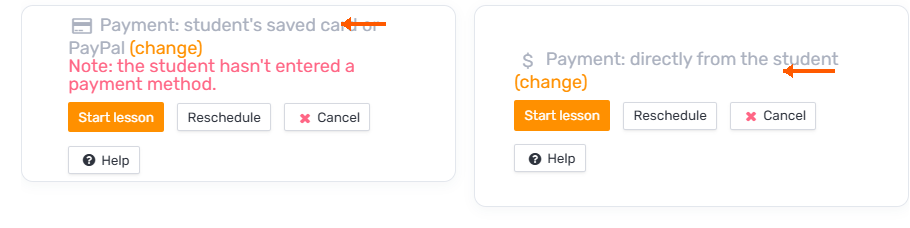
Changing from Card/PayPal to Direct
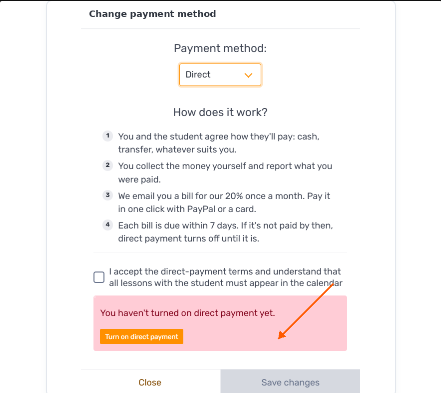
Choose Direct from the Payment method menu.
If Direct payment is not active, select Turn on direct payment and complete activation.
Return to the lesson and check the box accepting the Direct-payment terms.
Select Save changes.
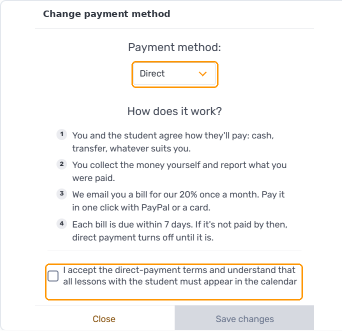
After the change is saved, the lesson shows Payment: directly from the student.
Changing from Direct to Card/PayPal
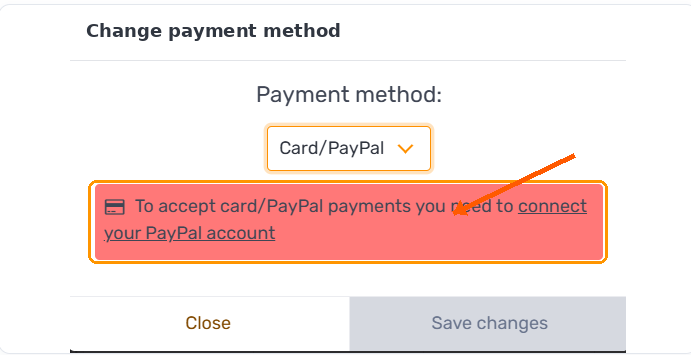
Choose Card/PayPal from the Payment method menu.
If PayPal is connected, select Save changes.
If it is not connected, select connect your PayPal account, complete setup, return to the lesson, and save the change.
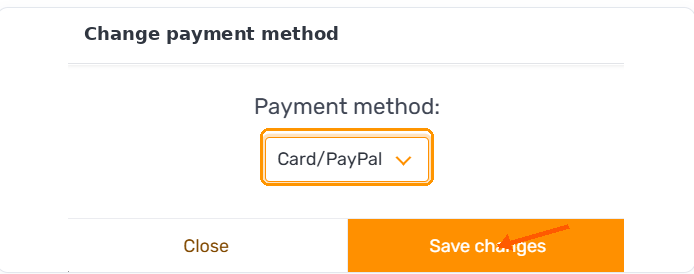
After the change is saved, the lesson shows Payment: student's saved card or PayPal.
What if the student hasn't added a payment method?
The lesson can be set to Card/PayPal before the student adds their payment method. If the lesson says the student hasn't entered a payment method, ask the student to add one before payment needs to be collected. You cannot collect a Card/PayPal payment until they complete that step.
If you and the student agree to use Direct payment instead, change the lesson to Direct and complete any required Direct-payment setup.
Send them to: How do I add, edit, or remove a payment method on my account?
Why is Save changes unavailable?
For Direct, make sure Direct payment is active and the terms box is checked. For Card/PayPal, make sure your PayPal account is connected. Closing the window without saving keeps the previous method.
What happens after the lesson?
Card/PayPal
Collect the payment through Tutorela's lesson-reporting flow. The student's payment is processed through PayPal and sent to your connected PayPal account. Learn more.
Direct
The student pays you directly. Report the completed lesson, its actual duration, and the amount received. Learn more.
Every completed lesson with a student who found you through Tutorela must be reported, including follow-up lessons. See How do I get paid after a lesson?
Does changing the payment method change the platform fee?
No. Tutorela's 20% platform fee applies to lessons and other paid tutoring services for students who found you through Tutorela, regardless of the payment method. The way the fee is handled depends on the method.