Already have student reviews on another tutoring website or on Google? You can submit a link so the Tutorela team can review that feedback and create a summary for your profile.
We don't import or copy individual reviews from other websites. Instead, we create a summary based on those reviews and display it on your Tutorela profile once approved.
Note! Adding a link starts a review process. It does not publish the external reviews immediately.
Before you start
Have the direct link to the public profile or page where your reviews appear. Use a page that anyone can open to read your reviews, not a private account dashboard or a website's general homepage.
Find the "From other sites" option
Log in to your tutor account and find the Reviews section in your dashboard.
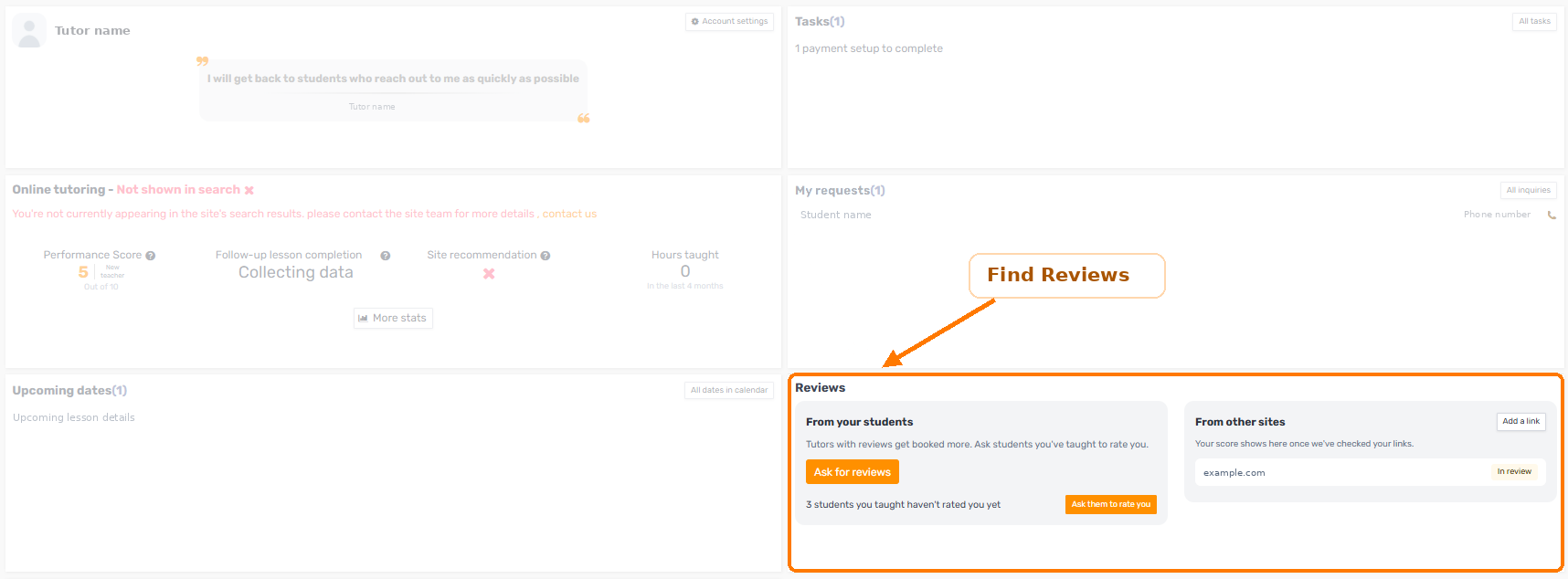
Under From other sites, select Add a link.
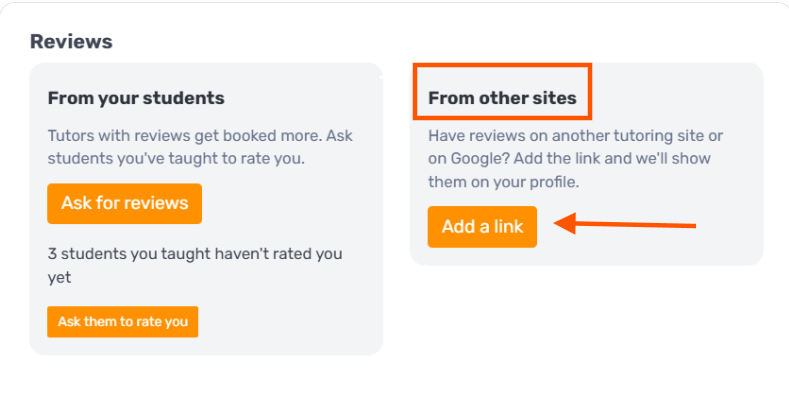
Open the public-profile link field
The Reviews you already have window opens. This is where you submit the page containing your existing reviews.
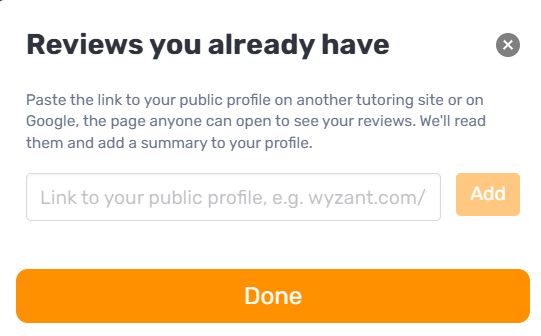
Paste your link and select Add
Paste the full link to your own public profile or review page into the field, then select Add.
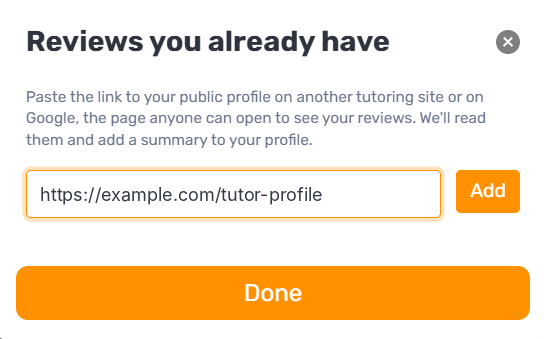
Use your own link. The example URL shown in the screenshot is only a placeholder.
Check the entry, then select Done
After you add the link, it appears in the window with an In review status.
Check that the correct website is listed, then select Done to return to your dashboard.
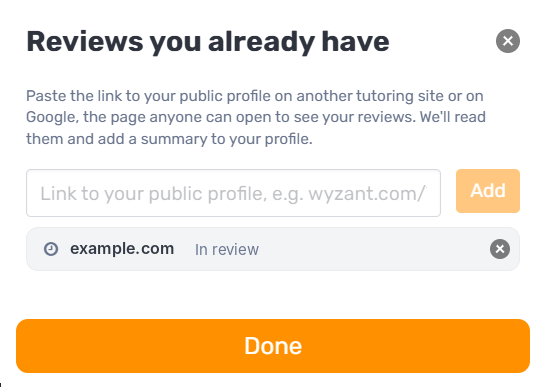
Important: Select Add to add the link before selecting Done.
Check the status in your dashboard
Your submitted link now appears in the From other sites card. In review means the submission is awaiting review; it does not mean the external reviews have already been published on your profile.
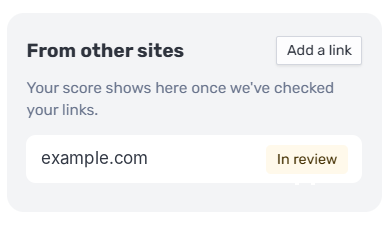
Tutorela will check the submitted page and use the reviews to prepare a summary for your profile. You can return to the From other sites card to check the status of your link.
Want to ask a student for a new review instead?
This feature is for reviews that are already published on another website. To invite a student to write a new review on Tutorela, use Ask for reviews in the From your students card.
See How do I ask students to leave a review on my profile?