You can invite students you've taught to leave a review on your Tutorela profile, including students who did not find you through the website.
Find the Reviews section
Log in to your tutor account and find the Reviews section in your dashboard.
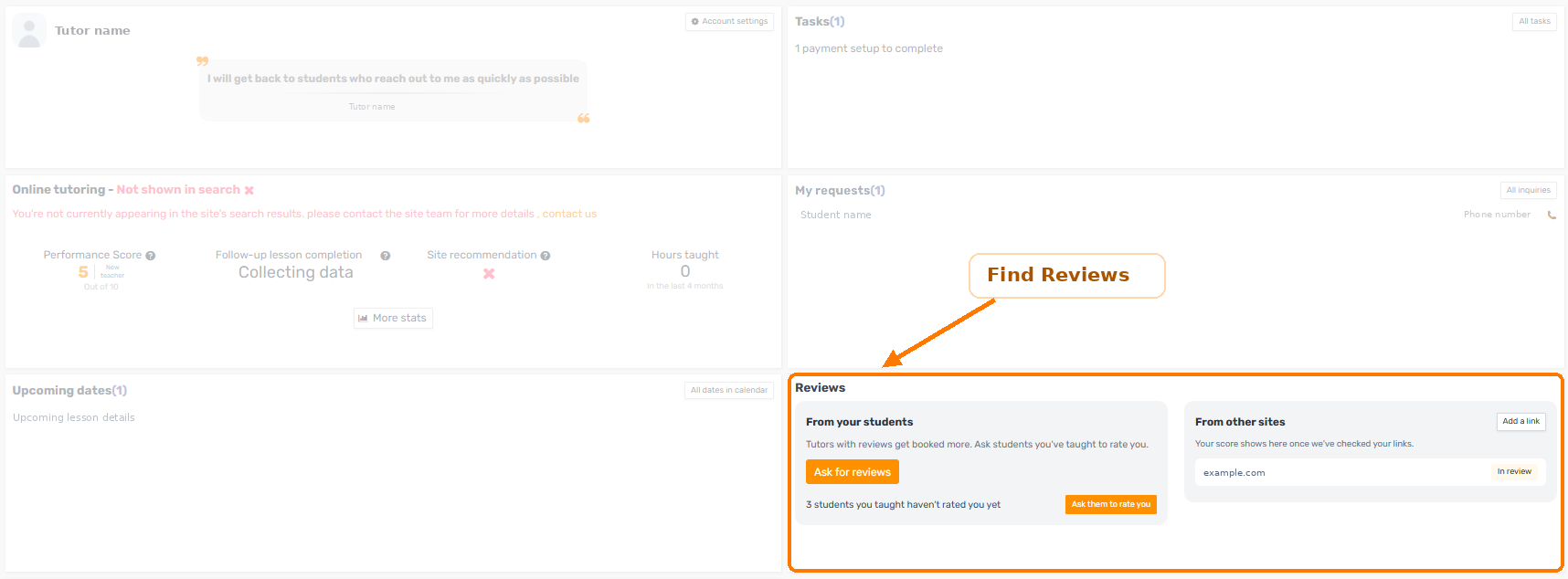
Under From your students, you'll see two ways to ask for reviews:
Ask for reviews - use this to share your personal review link with students you taught outside Tutorela.
Ask them to rate you - use this for students who found you through Tutorela and have had lessons with you, but haven't left a review yet.
Ask students you taught outside Tutorela
You can use Ask for reviews to invite students you've taught outside the platform to leave a review on your Tutorela profile.
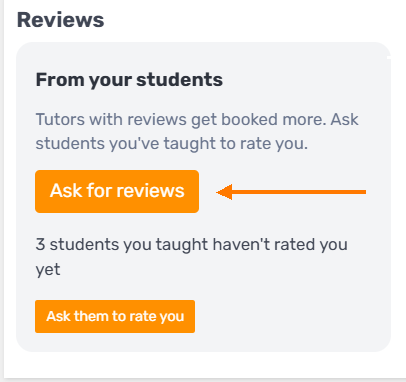
1. Select Ask for reviews
In the From your students card, select Ask for reviews.
2. Copy or share your personal review link
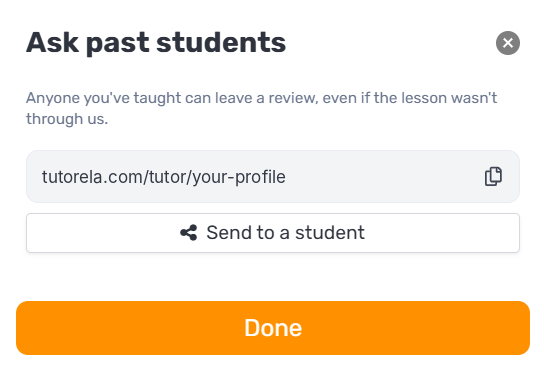
The Ask past students window opens with your personal review link.
Select the copy icon next to the link to copy it, then paste it into a message to your student. Alternatively, select Send to a student to open the sharing options available on your device.
3. Send your invitation
If you selected Send to a student, choose an available app, such as WhatsApp, and select the student you want to contact. Check the recipient and send your message with the review link.
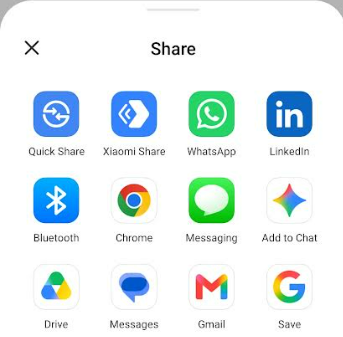
The sharing menu may look different on your device. You can also copy the link and paste it into a message yourself.
Once you've shared the link, return to the Ask past students window and select Done to close it.
Ask students who found you through Tutorela
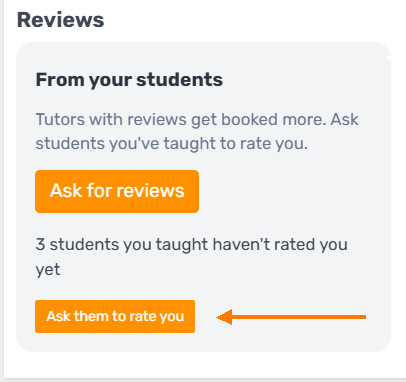
For students who found you through Tutorela, click Ask them to rate you. You’ll see a list of students you’ve taught who haven’t left a review yet, and you can send them a request directly.
1. Select Ask them to rate you
In the From your students card, look for the message showing how many students you have taught who haven't rated you yet. Select Ask them to rate you below that message.
2. Choose the student
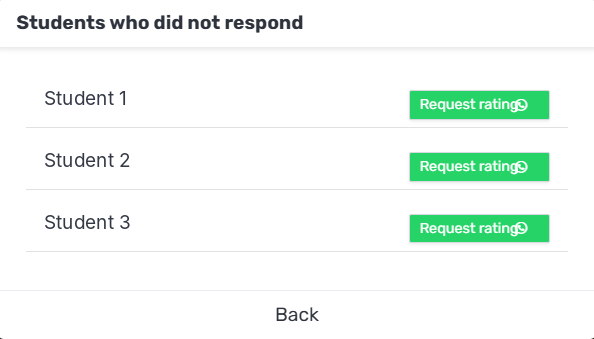
The Students who did not respond window lists the students who haven't left a review.
Find the student you want to contact and select Request rating next to their name.
3. Check and send the request
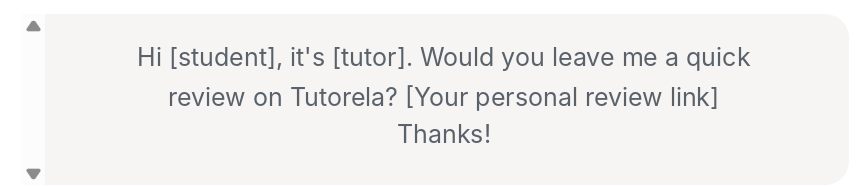
Review the prepared message and make sure it includes your personal review link. For a WhatsApp request, check the recipient and complete the send step in WhatsApp.
What happens next?
Students can follow your link to write and submit a review about their lessons with you. They’ll need to submit the review themselves—sending an invitation does not automatically add a review to your profile.
Each review is checked by the Tutorela team and will appear on your profile only after it has been approved.
Already have reviews on another website?
Use From other sites in the Reviews section to submit a link to existing reviews.