You can also teach online lessons through Google Meet.
If you chose to teach the lesson using Google Meet, follow these steps:
1. Enter Google Meet
The button appears after you've chosen to teach the lesson through Google Meet. It's important to enter Google Meet through this button so the system knows you've joined the lesson:
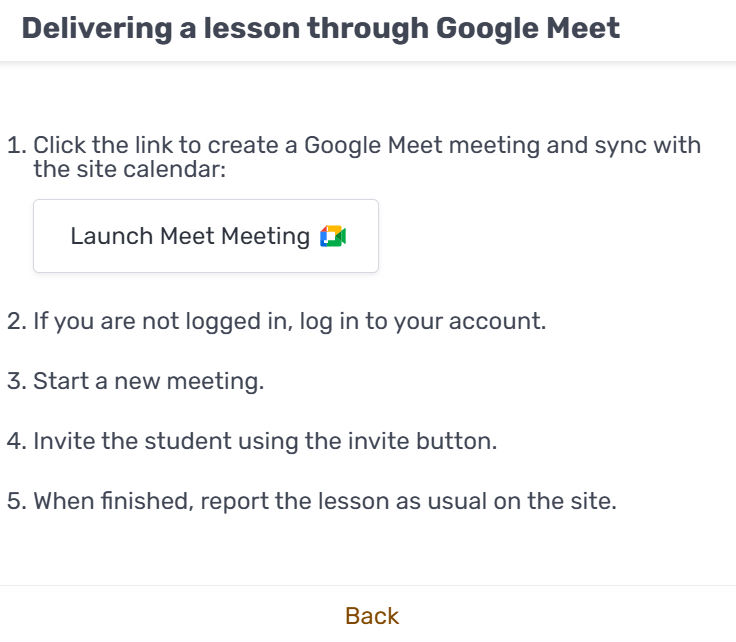
2. Sign in to your Google account
If you're not signed in yet, you'll need to sign in to your account first:
(Screenshot: signing in to Google)
3. Start the meeting by clicking the join button.
4. Invite the student using the Invite button, either before entering the room or after you've joined.
Before entering the room, the Invite button looks like this:
(Screenshot: Invite button before joining)
And after entering the room, the Invite button looks like this:
(Screenshot: Invite button after joining)
5. When the lesson ends, report the lesson on the platform as usual.
Other options for teaching an online lesson: